Configure the smartphone
The first time you use the smartphone to capture images, you will need to configure it. This process is simple and only needs to be done once.
Steps
To configure the provided device, follow these steps:
Follow the setup wizard
When you turn on the provided device for the first time, you will be guided through the setup process. This process will help you configure the device and set up your account.
Follow the on-screen instructions to complete the onboarding process, including:
- Choosing a language
- Connecting to a Wi-Fi network
- Setting up security
Log into clinicaltrials.legit.health
The platform can be accessed through the smartphone browser at clinicaltrials.legit.health.
To access this URL, open the browser on the smartphone.
You will not find this platform in the App Store or Google Play Store. The platform is a web application that can only be accessed through the browser on the smartphone.
Add the app to your home screen
We strongly encourage you to add the platform to your home screen. This will make it easier to access the platform in the future and will speed up your process.

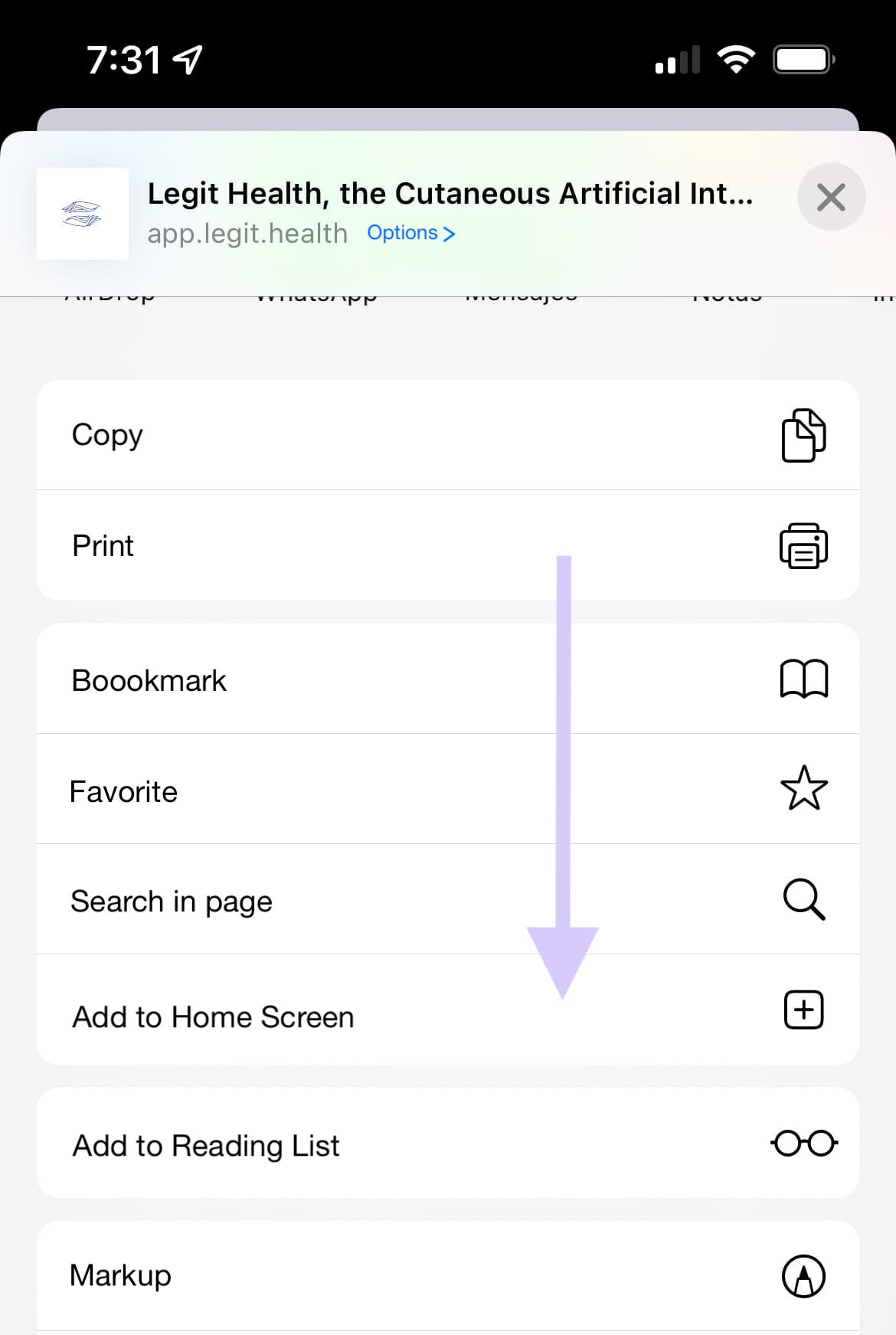
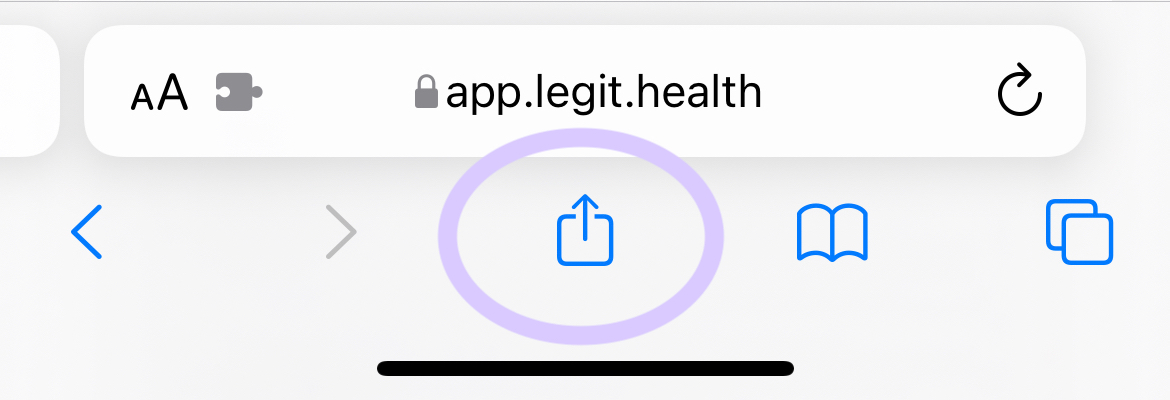
To add the platform to your home screen, follow these steps:
- Open the browser on the smartphone and visit clinicaltrials.legit.health.
- Click the Share button at the bottom of the screen.
- Scroll down and click Add to Home Screen.
- Click Add in the top right corner.
Keep the phone charged
Make sure the smartphone is charged, especially before receiving subjects and starting the image capture process. You will need the smartphone to be charged to take the images and upload them to the platform.